For social media teams, editorial staff and anyone who plans ahead
Import posts from Excel or CSV
You write your posts in a spreadsheet, put the spreadsheet and the pictures into a ZIP file and upload it to FediSuite. FediSuite checks every row, shows you the result and then creates everything at once as drafts or scheduled posts. This guide explains each step, even if you have never worked with a CSV file.
The post import is part of FediSuite 2.4.1 and all newer versions. Older versions have no “Import posts” button. The version of your instance is shown in the footer at the bottom of every page of the app. If you run the instance yourself, the update guide is at Updates and upgrades.
Every row becomes either a draft or a scheduled post. A post only goes out at the time you gave in the table. Until then you can edit or delete it. The import also only runs if every single row is fine.
On this page
- The short version
- What the import is for
- What you need
- Try it in five minutes
- How the ZIP file is built
- The posts.csv table
- The columns in detail
- The time: draft or scheduled post
- Pictures, videos and alt texts
- Saving the table from Excel, LibreOffice or Google Sheets
- The import in FediSuite, step by step
- What happens after the import
- Messages and what to do about them
- Limits at a glance
- Security and privacy
- For operators of self-hosted instances
- Frequently asked questions
- What was tested
1. The short version
The import creates many posts in one go. Every row of a table becomes a post. If the row has a time, it becomes a scheduled post. If it has none, it becomes a draft. Pictures and videos are named in the table and sit in the same ZIP file.
- You create a table named
posts.csv. Every row is one post. - You add the pictures and videos that appear in the posts.
- You pack everything into a ZIP file.
- In FediSuite you open Planner, Posts, Drafts and click “Import posts”.
- You choose the ZIP file and click “Check file”. FediSuite shows what each row will become and names problems in plain words.
- If all rows are fine, you click “Import all rows”.
A ready-made test run with three sample posts is in the section Try it in five minutes.
2. What the import is for
Anyone who posts regularly usually plans in a table already: an editorial calendar in Excel, a list in Google Sheets, an overview per month with text, picture and date. Without the import you have to type each of these posts into the composer again by hand. With the import you bring the table into the format FediSuite expects and you are done after one click.
Social media teams collect texts from several colleagues and agree on them before anything goes out. Influencers prepare the whole next month in one afternoon. A recurring series such as a Monday question or a weekly review you build as a table once and refill every week.
The import creates posts and nothing else. Threads, polls and replies to other posts do not go through it. Publishing right away is not part of it either. The composer stays the right place for single posts.
3. What you need
- FediSuite 2.4.1 or newer.
- At least one connected Fediverse account in FediSuite.
- For accounts that belong to a team, at least the role “Editor”. Someone who only has the role “Analyst” in the team may not import anything for it.
- The right time zone in FediSuite if you give times. You set it under Preferences, Timezone. Every time in the table without an addition applies in that time zone.
- A program that saves tables as CSV. Excel, LibreOffice Calc, Google Sheets and Numbers can do that. A text editor is enough in a pinch.
- A program that creates ZIP files. Windows, macOS and Linux include one.
4. Try it in five minutes
Download the sample file, choose it in the import dialog and let FediSuite show you the rows. It contains three posts without an account and without a time. You pick an account in the dialog, and all three posts land as drafts for that account. Nothing is published.
Download the sample file (ZIP, 22 KB)
The file holds a post with one picture, a post with two pictures and accented letters in the text, and a post without a picture that has a content warning and a limited audience. Feel free to unpack it and open the table in your spreadsheet program to see what a finished file looks like. After the test, select the three drafts in the post list and delete them with “Delete selected”.
5. How the ZIP file is built
The ZIP file holds the table and all pictures and videos that appear in it. FediSuite needs nothing more. Typical contents look like this:
december-posts.zip
  posts.csv
  images/
    autumn-blend.jpg
    winter-collection.png
    video-preview.mp4
The rules are short:
- The table must be named
posts.csv. Upper and lower case do not matter. - It sits either directly in the ZIP file or in exactly one folder inside it. That often happens on its own when you pack a whole folder. FediSuite does not find it if it is nested deeper.
- In the table you write the file name as it appears in the ZIP file, including the subfolder, for example
images/autumn-blend.jpg. If the table sits in a folder, the names count from that folder. - It does not matter whether you write a slash or a backslash. A leading
./is fine. Upper and lower case only count if two files differ in nothing else. - Umlauts, accents and spaces in file names are allowed. If FediSuite reports a file as missing although the name is right, rename the file without accents and special characters, for example
bear-and-lion.jpg, and enter the new name. - It has to be a ZIP file. FediSuite does not accept archives in the formats 7z, RAR or TAR, even if the extension fits.
- Files that appear in no row do no harm. They are not imported.
Creating a ZIP file
On Windows you select the files in Explorer, right-click them and choose “Send to”, “Compressed (zipped) folder”. On macOS you select them in Finder and choose “Compress” in the context menu. On Linux you pack them in the file manager with “Compress” or in a terminal with zip -r posts.zip posts.csv images.
6. The posts.csv table
A CSV file is a table as plain text. Every line is one post, and the cells of a line are separated by a delimiter, usually a comma or a semicolon. Your spreadsheet program creates it for you, so you do not have to write it by hand. How to save it is described in the section Saving the table from Excel, LibreOffice or Google Sheets.
The first row is the header. It names the columns. Every row below it is a post. FediSuite knows these columns:
| Column | Must be filled in? | What goes in | Example |
|---|---|---|---|
text | Yes, if the row has no picture | The text of the post | Good morning! The coffee is here. |
title | No | A title, only for platforms that require one, such as PeerTube | The winter collection at a glance |
account | No, if you choose an account for rows without one in the dialog | The account the post appears on | @redaktion@example.social |
scheduled_at | No | The time of publication. Empty means draft. | 2026-12-15 09:30 |
visibility | No | Who sees the post: public, unlisted, private or direct. Empty means public. | unlisted |
language | No | The language of the post as a language code | en |
content_warning | No | The text of a content warning. The post folds shut behind it. | Spoiler: season finale |
image_1 to image_4 | No | File names of pictures or videos from the ZIP file | images/autumn-blend.jpg |
alt_1 to alt_4 | No, but recommended | The alt text for the picture with the same number | A cup of coffee on a wooden table |
Every row needs at least text or a picture. The header must therefore contain at least one of the columns text or image_1. All other columns are optional. You leave out what you do not need.
An example
This is what a small table looks like as text. Here the comma is the delimiter:
text,account,scheduled_at,image_1,alt_1
New coffee in the shop!,@redaktion@example.social,2026-12-03 09:00,images/autumn.jpg,A cup of coffee
What do you drink to start the day?,@redaktion@example.social,2026-12-08 08:30,,
Ideas for the year in review,@redaktion@example.social,,,
The first row below the header becomes a scheduled post with a picture for 3 December at 9 am. The second is a scheduled post without a picture. The third has no time and therefore becomes a draft.
Rules for the header
- The order of the columns is up to you.
- Upper and lower case do not matter.
Text,TEXTandtextare the same column. - Spaces and hyphens instead of underscores are allowed.
Content Warningandcontent-warningare read ascontent_warning. - Columns that FediSuite does not know are ignored. The dialog then shows a note with their names. That is handy when your table has extra columns for notes or approvals.
- A known column may appear only once. If
textappears twice in the header, FediSuite refuses the file. - FediSuite skips empty rows and rows that contain only delimiters. In Excel that often happens at the end of a table.
- A file may have at most 200 rows with posts. For more posts you import several files one after another.
The row numbers in the messages match the row numbers in your spreadsheet program. The header is row 1, the first post is row 2. So you find a reported row right away.
7. The columns in detail
text
This holds the text of the post, as it should appear later. You write hashtags, mentions and links as in the composer. Line breaks inside a cell are allowed. In Excel on Windows you insert them with Alt and Enter, in LibreOffice with Ctrl and Enter. FediSuite removes spaces and breaks at the start and end of the text.
How long the text may be depends on the account. For scheduled rows FediSuite checks that in the preview already, including the characters a team signature needs. For drafts FediSuite does not check the length. It is checked when you schedule the draft later in the composer.
title
Most Fediverse platforms have no title. For platforms that require one, such as PeerTube, you enter it here. For all others you leave the column empty.
account
This says on which account the post should appear. Write the account exactly as FediSuite shows it in the selection field of the import dialog, for example @redaktion@example.social. You may leave out the @ at the start. Upper and lower case do not matter.
The column is optional if all posts belong to the same account. You then choose an account for rows without one in the dialog. If a row names an account, that account applies and not the choice in the dialog.
You may only name accounts that belong to you or where you are at least an Editor in the team. FediSuite reports everything else as an unknown account. A post for several accounts needs several rows, one per account. Copy the row and change the account.
visibility
This decides who sees the post. The terms are those of Mastodon:
| Value | Who sees the post |
|---|---|
public | Everyone. The post appears in the public timelines. |
unlisted | Everyone who finds it. It does not appear in the public timelines, though. |
private | Only your followers. |
direct | Only the accounts you mention in the text. |
If the cell is empty, public applies. FediSuite does not recognise other words such as “open” and reports them as unknown visibility.
language
The language code of the post helps platforms and readers classify it correctly. Use the two-letter code, such as de, en or fr. Variants with a region such as pt-BR are allowed too. FediSuite only checks the shape of other spellings, and only roughly. With the code you are on the safe side. If the cell is empty, FediSuite sets no language.
content_warning
If this holds text, the post appears behind that warning and only opens with a click. That suits spoilers, advertising or sensitive topics. If the cell is empty, there is no warning.
image_1 to image_4 and alt_1 to alt_4
Pictures and videos have a section of their own, see Pictures, videos and alt texts.
8. The time: draft or scheduled post
The column scheduled_at decides what a row becomes. If the cell is empty, a draft is created. If it holds a time, a scheduled post is created, which FediSuite publishes at that time.
Allowed spellings
| Spelling | Example | Time zone |
|---|---|---|
| Year-month-day hour:minute | 2026-12-15 09:30 | Your time zone from the preferences |
| The same with a T instead of a space | 2026-12-15T09:30 | Your time zone from the preferences |
| Day.month.year, the way it is written in Germany | 15.12.2026 09:30 or 5.1.2027 9:05 | Your time zone from the preferences |
| With a UTC marker | 2026-12-15T09:30:00Z | UTC |
| With an offset to UTC | 2026-12-15T09:30:00+01:00 | The one given |
The year must have four digits. FediSuite does not recognise two-digit years such as 15.12.26, spelled-out months and words such as “tomorrow”. Seconds in the value are ignored, scheduling works to the minute. Only add a time zone if you really need it. In all other cases leave it out and rely on the setting in your account.
If you type 2026-12-15 09:30 into an Excel cell, Excel turns it into a real time value and writes it into the CSV file in the format of your system. On a German system that gives 15.12.2026 09:30, which FediSuite understands. A format with a two-digit year such as 15.12.26 09:30 it does not understand. So format the column as text before you type, or set the cell format to DD.MM.YYYY hh:mm. The preview shows right away whether FediSuite has read the time.
What FediSuite rejects
- Times in the past, even if they are only a minute back.
- Times more than five years in the future.
- Dates that do not exist, such as 31 February 2027 or 24:00.
- Times that do not exist because of the clock change. On 28 March 2027 the clocks in Germany jump from 2:00 to 3:00, so
2027-03-28 02:30does not exist there.
A time that occurs twice at the clock change in autumn, such as 31 October 2027 at 2:30, FediSuite sets to the later of the two occurrences.
FediSuite checks the time in the preview and once more during the import. If you waited long on the preview and the time has passed in the meantime, FediSuite reports it as past. Check the file again then.
9. Pictures, videos and alt texts
Every post can have up to four files. You name them in the columns image_1 to image_4 and describe them in the columns alt_1 to alt_4. The numbers belong together: alt_2 describes the file from image_2. Numbers may have gaps. If only image_1 and image_3 are filled in a row, the post has two files.
Allowed files
Pictures may be JPEG, PNG, GIF, WebP, BMP, HEIC or AVIF. Videos may be MP4, MOV, WebM, M4V, 3GP, AVI or OGV. FediSuite recognises the type from the content of the file. A text file that you rename to picture.jpg is rejected. A PNG file with the extension .jpg, on the other hand, goes through and is saved under its real type. The import does not accept PDF files and SVG graphics.
Whether an account allows more than one video or mixed files depends on the platform. For scheduled rows FediSuite applies the same platform rules as the composer and reports violations in the preview. For drafts these rules only apply when you schedule them.
Size and number
- A single file may be at most 50 MB.
- The ZIP file may be at most 200 MB.
- Unpacked, the files in use may add up to at most 200 MB. If the same picture appears in several rows, it counts for every use, because each post gets its own copy.
- The ZIP file may contain at most 1,000 files.
- Four files per post are possible. If the account allows fewer, for example two, FediSuite reports the row with more files.
Alt texts
An alt text describes what a picture shows. Blind and visually impaired people hear it through their screen reader, and it helps wherever pictures do not load. In the Fediverse alt texts are part of good manners. Describe in plain words what is visible and what matters for the post, in one or two sentences.
An alt text may be up to 2,000 characters long. If alt_2 holds text but image_2 is empty, FediSuite reports an error, because the text cannot be assigned to a file. The post list later shows on every post how many attachments it has and how many of them have an alt text.
10. Saving the table from Excel, LibreOffice or Google Sheets
You build the table in the program you are used to and save it at the end as a CSV file named posts.csv. FediSuite recognises the usual forms on its own: UTF-8 with and without byte order mark, Windows-1252 (the way Excel saves the variant “CSV”), UTF-16 (Excel “Unicode Text”) and comma, semicolon and tab as delimiters. FediSuite works out the delimiter from the header. Accented letters and special characters such as ß, € or “quotation marks” therefore arrive correctly, and so do emojis and text in other scripts.
Microsoft Excel
Choose File, Save As and the file type “CSV UTF-8 (Comma delimited) (*.csv)”. The file name is posts.csv. If you choose “CSV (Comma delimited)” instead, that works as well, because FediSuite also reads this Windows variant correctly. Excel asks while saving whether you really want to keep the format. Confirm that.
LibreOffice Calc
Choose File, Save As and the file type “Text CSV (.csv)”. Tick “Edit filter settings”. In the next window choose “Unicode (UTF-8)” as character set, a comma or semicolon as field delimiter and the quotation mark as string delimiter. Also enable “Save cell content as shown”, so dates and times appear in the file the way you see them.
Google Sheets
Choose File, Download and “Comma Separated Values (.csv)”. Google always saves in UTF-8. The file carries the name of your spreadsheet. Rename it to posts.csv afterwards, before you put it into the ZIP file. Always download only the sheet that holds the posts.
Apple Numbers and text editors
Numbers exports through File, Export To, CSV. In a text editor you write the file by hand and save it as UTF-8, as in the example in the section The posts.csv table. Cells that contain a delimiter, a line break or a quotation mark go in quotation marks. A quotation mark inside the text is doubled. Spreadsheet programs do that automatically.
Descriptions of menus can change with program versions. The goal stays the same: a CSV file in UTF-8, with a comma or semicolon as delimiter and the name posts.csv.
11. The import in FediSuite, step by step
Step 1: Open the dialog
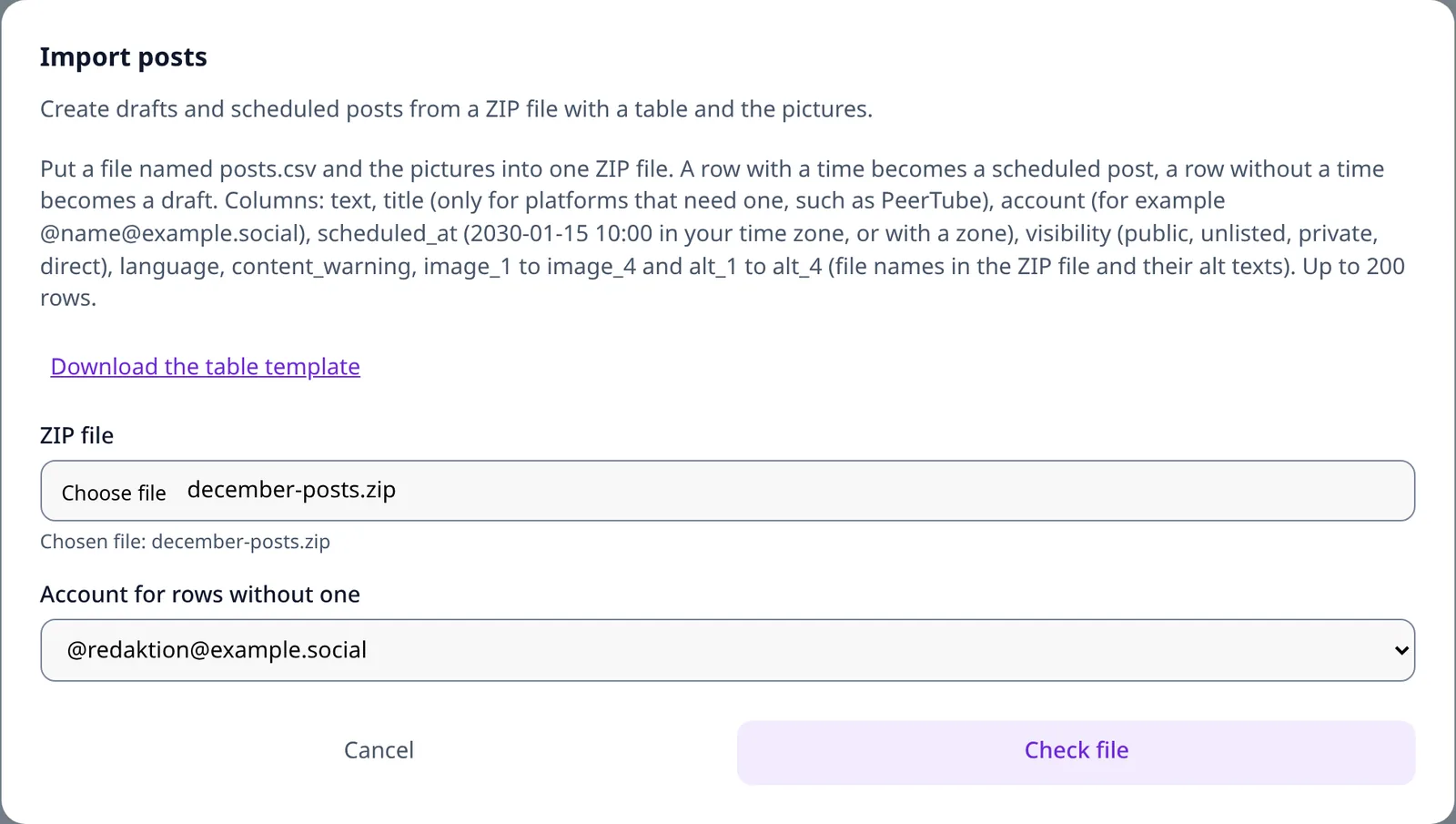
Open Planner and then Posts in the sidebar. Switch to the tab “Drafts”. There you find the button “Import posts”. It opens the dialog where you do everything.
Step 2: Choose the file and the account
In the dialog you choose the ZIP file. Below it is the field “Account for rows without one”. Choose the account there that should apply when the column account is empty in the table. With the choice “None, every row names its account”, every row must name an account of its own. The link “Download the table template” gives you an empty table with all columns and two sample rows.
Click “Check file”. Nothing is stored yet. The check only reads.
Step 3: Read the preview
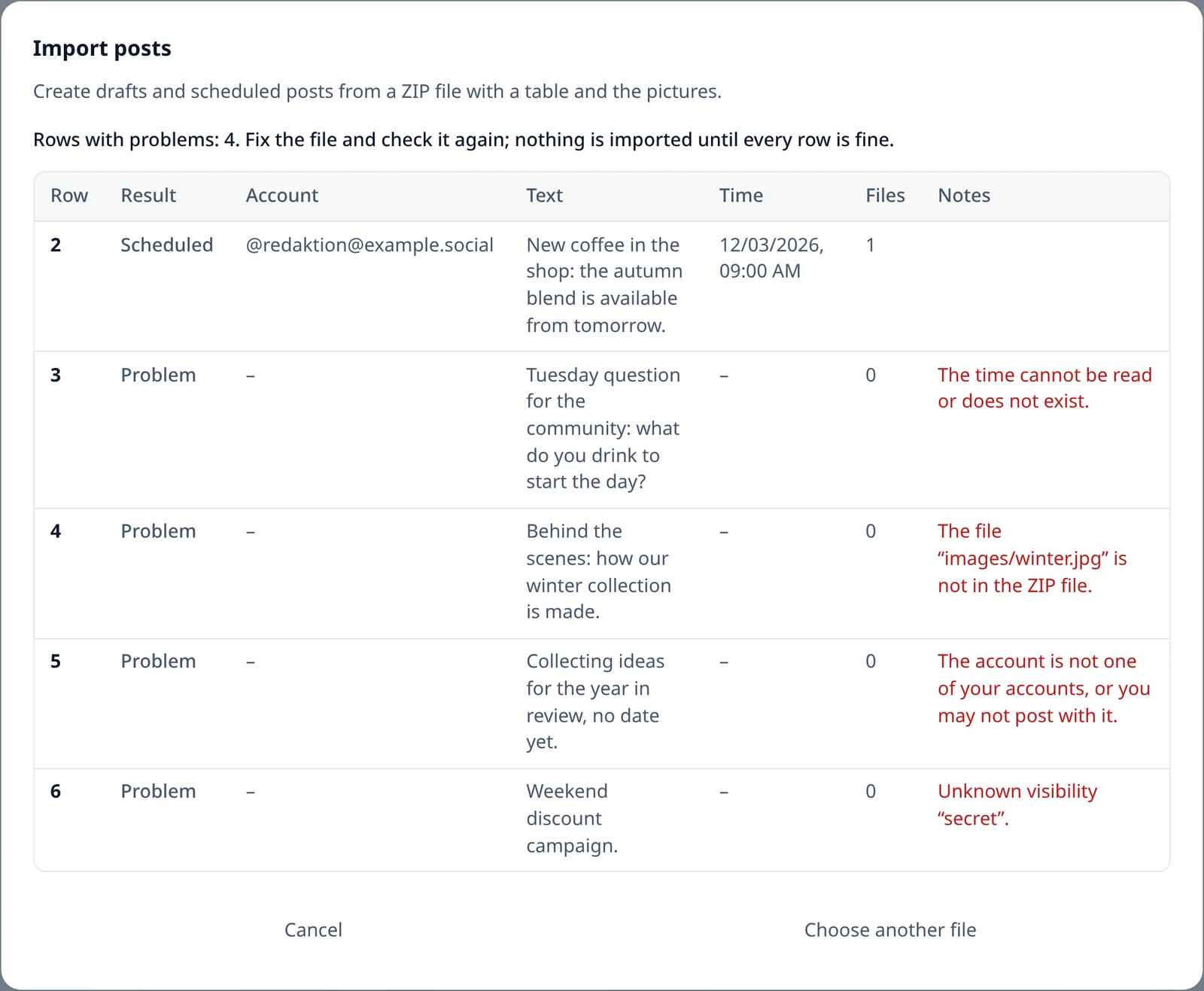
FediSuite shows you a table with all rows of your file. For each row you see the result (Draft, Scheduled or Problem), the account, the start of the text, the time in your time zone, the number of files and, in the column “Notes”, a message if something is wrong. Above the table is a summary, for example “Rows with problems: 4”. The summary gets the focus after every step and is read out by screen readers. That way you can work with the keyboard without detours.
If there are problems, no import button appears. Fix the file in your spreadsheet program, save it, pack the ZIP file again and choose it once more with “Choose another file”. The list of messages is in the section Messages and what to do about them.
Step 4: Import
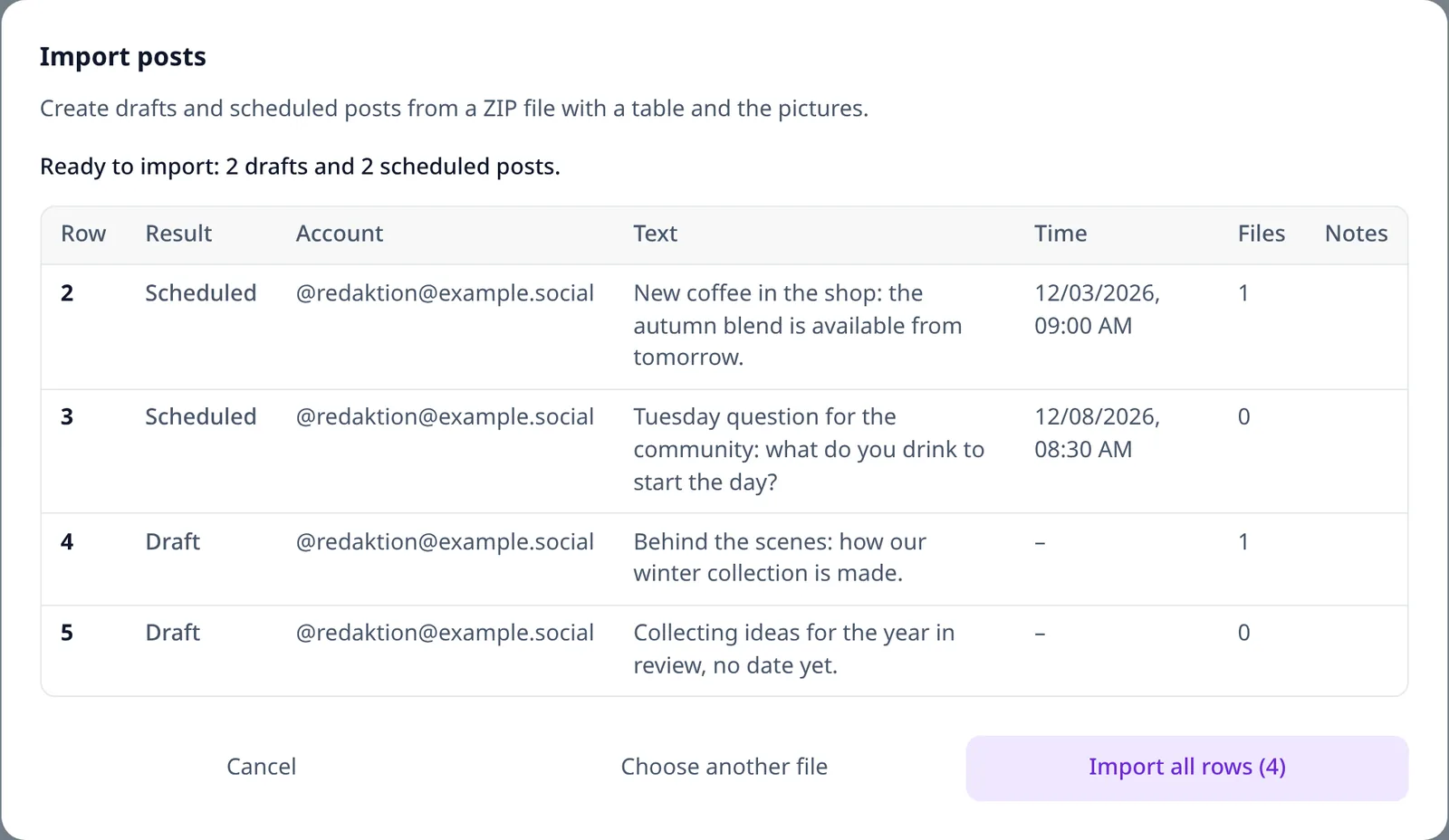
If every row fits, the line “Ready to import” appears above the table with the number of drafts and scheduled posts. Only now does the button “Import all rows” appear, with the number of rows. One click creates all posts. FediSuite uploads the pictures, creates preview images and saves the posts. Depending on the number of files that takes a few seconds. While it runs, the dialog cannot be closed, so you do not miss the result.
Step 5: The result
Afterwards every row in the table says “Created”, and above the table is the number of posts. Close the dialog with “Close”. The post list reloads and shows the new posts. Do not import the same file a second time, or all posts will exist twice. Within one dialog FediSuite protects against an accidental double click or an interrupted connection. A second session with the same file it does not recognise.
If something goes wrong while saving
If FediSuite cannot create a row while saving, it cancels the whole import. Nothing is left behind, neither posts nor uploaded pictures. The affected row is marked “Failed” in the table, and you can try the import again. There is never a half import where only some of the posts exist.
Only one import at a time
Each person can run one import at a time. If you start a second one while the first is still running, for example in another browser window, FediSuite tells you that an import is already running. Wait until it has finished.
12. What happens after the import
You find drafts in the tab “Drafts”. They have the stage “In progress”, and you can edit, duplicate, delete or schedule them like any other draft. Text, pictures, alt texts, visibility, language and content warning are set the way you gave them in the table.
Scheduled posts are in the tab “Scheduled” and in the calendar. The planner publishes them at the given time, even if the app is not open. Until then you can change, move or delete them in the composer. If a publication fails, the post appears under “Failed” like any other, with the message from the instance.
Everything that applies to posts from the composer applies to imported posts. You assign labels and campaigns afterwards in the post list or in the composer. They are not part of the table.
13. Messages and what to do about them
The messages appear in the dialog in the language of your app. Here you find them in the English wording. Where there is a placeholder, FediSuite fills in the actual value.
Messages about single rows
| Message | Cause and solution |
|---|---|
| No account named, and no account chosen for rows without one. | The column account is empty in this row, and no account is preselected in the dialog. Enter an account or choose one in the dialog. |
| The account is not one of your accounts, or you may not post with it. | The account is misspelled, belongs to someone else, or you only have the role “Analyst” in the team. Check the spelling against the selection field in the dialog. |
| Several of your accounts match this handle. | Two of your accounts cannot be told apart by the entry. Write the account in full with the instance. |
| The time cannot be read or does not exist. | The format is wrong, or the date or time does not exist. See The time. In Excel a two-digit year is often the cause. |
| The time is in the past. | Choose a later time or clear the cell so a draft is created. |
| The time is more than five years ahead. | Check the year for a typo. |
| Unknown visibility “…”. | Allowed are public, unlisted, private and direct, or an empty cell. |
| Unknown language “…”. | The language code has an invalid shape. Use de or en, for example. |
| The file “…” is not in the ZIP file. | The name in the table matches no file in the archive. Check spelling, subfolder and file extension. With accents in the name it helps to rename the file without them. |
| “…” is no picture or video. | The file has other content, is damaged or is a PDF or an SVG graphic. Export the picture again as JPEG or PNG. |
| “…” is too large. | The file is bigger than 50 MB. Shrink or compress it. |
| Alt text … has no file. | An alt column holds text, but the matching image column is empty. Enter the file or delete the alt text. |
| Alt text … is too long (at most 2000 characters). | Shorten the description. |
| The account allows at most … attachments. | The row names more files than the platform of the account allows. Remove files or split the post. |
| The row has neither text nor a file. | Enter text or a picture or delete the row. |
| The text is longer than allowed (at most … characters). | Applies to scheduled rows. The account allows fewer characters than the text has. Shorten the text. A team signature takes some of the allowed length. |
| A message from the platform, for example about a missing title | Applies to scheduled rows. The platform of the account sets a rule that the row breaks. The message names the reason. On PeerTube, for example, the title is often missing. |
| The post could not be saved. | An error occurred while saving. Nothing was imported. Try again. If the error stays, the log of the instance helps, see For operators. |
Messages about the whole file
| Message | Cause and solution |
|---|---|
| Please choose a ZIP file. | No file was transferred. Choose the file in the dialog. |
| The file is not a readable ZIP archive. | The file is damaged or not a ZIP. Create the archive again and make sure it is in the ZIP format. |
| The archive is too large: at most 1,000 files and 200 MB unpacked. | Too many files or too much data. Split the import across several ZIP files. Keep in mind that a picture counts for every use. |
| The archive has no posts.csv file. | The table is named differently or nested too deep. Rename it and put it directly into the archive or into a single folder. |
| The posts.csv table cannot be read. | The file is not a text file, is larger than 2 MB, has more than 60 columns or more than 5,000 filled rows, or a quotation mark is not closed. Save the table again as CSV. An Excel file with the extension .xlsx is not enough. |
| The table needs at least a “text” or an “image_1” column. | The header is missing or names the columns differently. The header must be in the first row. |
| The column “…” appears more than once in posts.csv. | A column appears twice in the header. Remove one of them. |
| The table has no rows with posts. | Nothing follows the header. Enter at least one row. |
| The table has too many rows (at most 200). | Split the table into several files. |
| An import is already running for your account. Please wait until it has finished. | You have already started an import. Wait until it is complete. |
| The import has no key that protects it against repeats. Please reload the page and try again. | The page is out of date. Reload it and start the import again. |
If a message appears that is not listed here, or an error keeps coming back, report it in the support forum and name the message and the version.
14. Limits at a glance
| What | Limit |
|---|---|
| Rows per import | 200 |
| Columns in the table | 60 |
| Size of the posts.csv table | 2 MB |
| Files per post | 4, or fewer if the account allows fewer |
| Size of one file | 50 MB |
| Size of the ZIP file | 200 MB |
| Unpacked files, every use counted | 200 MB |
| Files in the ZIP file | 1,000 |
| Length of an alt text | 2,000 characters |
| Time in the future | 5 years |
| Simultaneous imports per person | 1 |
15. Security and privacy
The ZIP file is only processed on the instance you are signed in to. It does not go to any other service. During the check it sits briefly in a private directory on the server that cannot be requested publicly, and it is deleted afterwards. Leftovers of an aborted run are cleared away by FediSuite automatically after one to two hours.
FediSuite does not unpack the file onto the disk. It reads the single entries directly. It rejects names with path tricks such as ../, encrypted archives, damaged archives and oversized archives. Whether a file is a picture or a video, FediSuite decides from the content and not from the extension. All limits are in the section Limits at a glance.
Imported pictures end up in the same upload area as pictures from the composer. The file names contain a random number, but the addresses can be requested without signing in, as with all media in FediSuite. So do not upload anything that should not be published.
You can only use accounts you may access anyway. FediSuite rejects imports for other people's accounts. Someone who is only an Analyst in a team cannot import anything for its accounts.
16. For operators of self-hosted instances
The import needs no new setting. It belongs to the drafts and is therefore on as long as ENABLE_DRAFTS is not set to false. If you switch the drafts off, the import disappears with them. The variables are explained in the section Environment variables.
The planner publishes scheduled posts in the background. For that ENABLE_SCHEDULER must be true, which is the default. If the planner is off, imported scheduled posts stay where they are.
A ZIP file may be 200 MB. A reverse proxy that limits uploads has to let that through. With nginx you set client_max_body_size 200m;. Traefik only limits uploads if you have set up a buffering middleware with maxRequestBodyBytes. More is at Reverse proxy.
An import with many attachments takes time. In a test with 200 scheduled posts of four pictures each, so 800 attachments with preview images, the request took 16 seconds. Do not set the timeout of your proxy below 60 seconds. Every use of a file is saved as a file of its own in the upload directory. Plan the disk space by the number of uses and not by the size of the ZIP file.
FediSuite writes errors while saving a row to the container log with the row number, recognisable by [PostImport]. If a crash happens in the middle of an import, files stay behind for a while. At start and every hour after that FediSuite removes files of imports that were aborted more than an hour ago and belong to no post.
17. Frequently asked questions
- Can I publish posts right away with this?
- No. Every row becomes a draft or a scheduled post. If a post should go out soon, schedule it for a time a few minutes ahead.
- How many posts can I import at once?
- Up to 200 rows per file. For more you upload several files one after another.
- Can I create a post for several accounts at the same time?
- Not in one row. Create one row per account. Copy the row and change only the column
account. - What happens if a row has an error?
- Then FediSuite imports nothing at all. In the preview you see which rows have the problem, fix the file and check it again. So there is never a half import.
- What happens if I import the same file twice?
- Then all posts are created twice. You can delete them in the post list with selection and “Delete selected”. Within the same dialog FediSuite prevents a double click or an interrupted connection from creating the posts twice.
- Can I change imported posts afterwards?
- Yes. They are ordinary drafts and scheduled posts. You edit them in the composer.
- Do threads, polls or replies work?
- No. The import creates single posts. You create threads, polls and replies in the composer.
- Do I need Excel?
- No. Any program that saves CSV files is enough, including free ones such as LibreOffice or Google Sheets. In a pinch you write the file in a text editor.
- My accented letters look broken in the preview. What can I do?
- That is rare, because FediSuite recognises UTF-8, Windows-1252 and UTF-16 on its own. In that case save the file again as “CSV UTF-8” and check it again.
- Is there an import in the Android app too?
- The import is part of the web interface. You start it in the browser.
- Do I have to shrink my pictures first?
- Only if a file is over 50 MB or the ZIP file exceeds 200 MB in total. FediSuite creates smaller preview images itself.
- Can I upload Excel files with the extension xlsx?
- No. The table has to be a CSV file named
posts.csv. Save the Excel table as CSV for that.
18. What was tested
The import was tested in an isolated virtual machine with the real Docker image of FediSuite 2.4.1, together with a PostgreSQL 18 database and real picture and video files. Tables were tested in UTF-8 with and without byte order mark, in Windows-1252, ISO-8859-1 and UTF-16, and with comma, semicolon and tab. The text arrived unchanged in every case, including umlauts, ß, €, quotation marks, emojis, text in Chinese, Arabic and Hebrew script, line breaks in cells, HTML tags, SQL characters and formula characters at the start of a cell.
Also checked were all spellings of the time with summer time, winter time and the gap at the clock change, the common picture and video formats (JPEG, PNG, GIF, WebP, BMP, MP4, MOV and WebM), the rejection of PDF, SVG and files with a wrong extension, the account and team permissions, the limits for size and number, damaged and manipulated ZIP files, several simultaneous imports, aborted uploads, an abort in the middle of saving and the restart after a crash. On top of that came the dialog in the browser in German and English and the translations of the messages in German, English, Spanish, French and Italian.
The described menus of Excel, LibreOffice, Google Sheets and Numbers were not tested with the real programs. They are described according to the vendors' information. ZIP files from older Windows versions with accents in the file name and accounts on Bluesky were not tested either.
Questions and bug reports belong in the support forum.