For operators of self-hosted instances
Set up single sign-on (OIDC)
With single sign-on, people no longer sign in with a FediSuite password. They sign in through an identity provider that you run yourself, for example authentik or Keycloak. This guide first explains in plain words what it is about, then takes you through the setup step by step, and finally shows you how to find errors. You do not need to know OpenID Connect beforehand.
Everything here applies to FediSuite 2.4.0 and newer. You switch the feature on in the web interface under Admin area → Settings. You do not have to change docker-compose.yml, and no environment variable is needed to activate the feature.
The FediSuite Android app signs in with e-mail and password only. Accounts that exist only through single sign-on have no usable password. If you turn off password login, nobody can sign in with the Android app any more. Keep password login on while people use the app.
Important: keep the order, or you lock yourself out
If you turn off the password login before the sign-in through the provider has been shown to work, you cannot get into your instance any more. Follow the section Roll-out in the safe order exactly. There is also an emergency exit for the worst case.
- Make a backup first (Backup and restore).
- Keep the password login on at first and turn it off only at the end, if you want to at all.
- Link your own admin account with the provider first and test the sign-in.
On this page
- The short version
- What is this? The terms in plain words
- How a sign-in works
- Is single sign-on right for your instance?
- Before you start: the checklist
- The settings in FediSuite
- Setup with authentik
- Setup with Keycloak
- Other providers
- Which account does a sign-in end up in?
- Roll-out in the safe order
- What your users see
- How secure is it?
- Privacy
- Errors and solutions
- Maintenance and changes
- Frequently asked questions
- What has been tested
1. The short version
Single sign-on, SSO for short, means that your users do not type a FediSuite password. They click a button, sign in at your identity provider and come back to FediSuite signed in. The provider knows the people and checks their credentials. FediSuite relies on its answer.
FediSuite uses the standard OpenID Connect, OIDC for short. That is why it works with authentik, with Keycloak and with every other provider that supports OIDC.
- You switch SSO on under Admin area → Settings → Single sign-on (OIDC).
- From your provider you need the address (issuer), a client ID and a client secret. At the provider you also enter the redirect URL of FediSuite.
- Existing accounts are matched by e-mail address, but only when the provider reports the address as verified.
- The provider never grants the admin role. Roles always stay in FediSuite.
- The safe order is: save the settings and keep the password login on, link your own admin account, test the sign-in, and only then turn the password login off if you want to.
- If you lock yourself out,
OIDC_PASSWORD_LOGIN_OVERRIDE=truein the.envhelps, see emergency exit.
2. What is this? The terms in plain words
Picture an office building. Every company in it could hand out its own keys and check by itself who may enter. There is another way: someone sits at the front desk, checks every ID card and tells the company on the third floor, I know this person, they may visit you. That is how single sign-on works. The front desk is your identity provider, the company on the third floor is FediSuite.
You do not have to memorise the following terms. They show up in the settings and in error messages, so they are collected in one place.
| Term | Meaning |
|---|---|
| Identity provider | The service that knows your users and checks their passwords, for example authentik or Keycloak. FediSuite asks it: who is this person? |
| OpenID Connect (OIDC) | The common language FediSuite and the provider use to talk to each other. It builds on OAuth 2.0 and adds a signed statement about who signed in. |
| Issuer | The web address that identifies your provider (or one application or realm inside it). FediSuite finds everything else from there on its own. |
| Client | From the provider's point of view, FediSuite is a client, in some interfaces called an application. You register it once at the provider. |
| Client ID and client secret | A kind of user name and password for FediSuite itself, so the provider knows the request really comes from your instance. The secret is stored encrypted and never shown again. |
| Redirect URL | The address in FediSuite the provider sends people back to after the sign-in. You must register exactly this address at the provider. FediSuite shows it to you in the settings. |
| Scopes | The kinds of information FediSuite asks for. openid is required, FediSuite needs email to match accounts, and profile is the usual name data. |
| Claims | The individual facts in the provider's answer, such as the e-mail address, whether it is verified (email_verified) and a permanent user ID (sub). |
| ID token | A signed message from the provider saying who signed in. FediSuite checks the signature, the issuer, the audience, the expiry and a one-time value (nonce). |
| PKCE | An extra protection for the code created during sign-in. FediSuite always uses it. |
Subject (sub) | The permanent, internal ID of a person at the provider. It does not change when someone changes their e-mail address. FediSuite links accounts by issuer and subject. |
3. How a sign-in works
- The person opens the FediSuite sign-in page and clicks the single sign-on button.
- FediSuite sends the browser to the provider, together with a random one-time value and a code challenge. A small cookie ties the process to this browser.
- The person signs in at the provider with whatever the provider requires: password, passkey, second factor.
- The provider sends the browser back to the redirect URL of FediSuite with a short-lived code.
- FediSuite exchanges the code for the ID token directly with the provider (server to server, not through the browser) and checks the token.
- FediSuite decides which FediSuite account belongs to this identity, see Which account does a sign-in end up in?
- The browser receives a one-time ticket that is valid for 60 seconds, trades it for a normal FediSuite session, and the person is in. No token ever appears in the address bar.
FediSuite does not store the person's password at the provider, never sees it, and gets no access to the person's other applications.
4. Is single sign-on right for your instance?
It fits well when
- you already run an identity provider and want one central place to create and remove access, including multi-factor authentication,
- several people use the instance, for example a team or an organisation,
- you want to sign in to many self-hosted services with the same account.
It adds little when
you are the only person on your instance and have no provider yet. Then the password login of FediSuite is simpler, and the provider would be one more service that has to keep running.
Think about this first
- Availability. If you turn off the password login and the provider goes down, nobody can sign in until it is back. You should know the emergency exit.
- Two-factor authentication. Signing in through the provider skips the two-factor check of FediSuite. Your provider is then responsible for multi-factor authentication. Make sure it enforces it if you rely on it.
- Android app. The FediSuite Android app signs in with e-mail and password. If you turn the password login off, people cannot sign in with the app. Keep the password login on when the app is in use.
- Privacy. The provider learns when someone signs in to your instance. Your privacy policy has to say so, see Privacy.
- No open sign-in mode. FediSuite trusts only the one provider you enter. There is no "sign in with any provider" mode.
5. Before you start: the checklist
- FediSuite 2.4.0 or newer. Check the version with
docker compose exec -T app printenv VITE_APP_VERSIONor in the changelog. APP_URLis correct. In the.env,APP_URLmust be the public address of your instance, for examplehttps://fedisuite.example.org, without a trailing slash. The redirect URL is built from it. A wrongAPP_URLis the most common reason for aredirect_urierror at the provider. Restart the containers after changing it.- The provider is reachable from the FediSuite container, not just from your browser. If the provider sits in your own network, you need
ALLOW_PRIVATE_INSTANCE_URLS=truein the.env. FediSuite accepts plainhttp://only with that switch; otherwise the issuer must start withhttps://. - The clocks are right. Server and provider need the correct time (NTP). A clock that is off by minutes makes the ID token look expired or not yet valid.
- A backup is ready. Run
./scripts/backup.shas described in Backup and restore. The settings live in the database. The client secret is encrypted withACCOUNT_ENCRYPTION_KEY, so keep that key safe, as you already do. - You have a working admin login with a password and, ideally, a second admin account.
- Your privacy policy has been checked. See Privacy.
- You know how you will create users at the provider and whether their e-mail addresses count as verified there, see Which account does a sign-in end up in?
6. The settings in FediSuite
Open Admin area → Settings. There you find the card Single sign-on (OIDC).
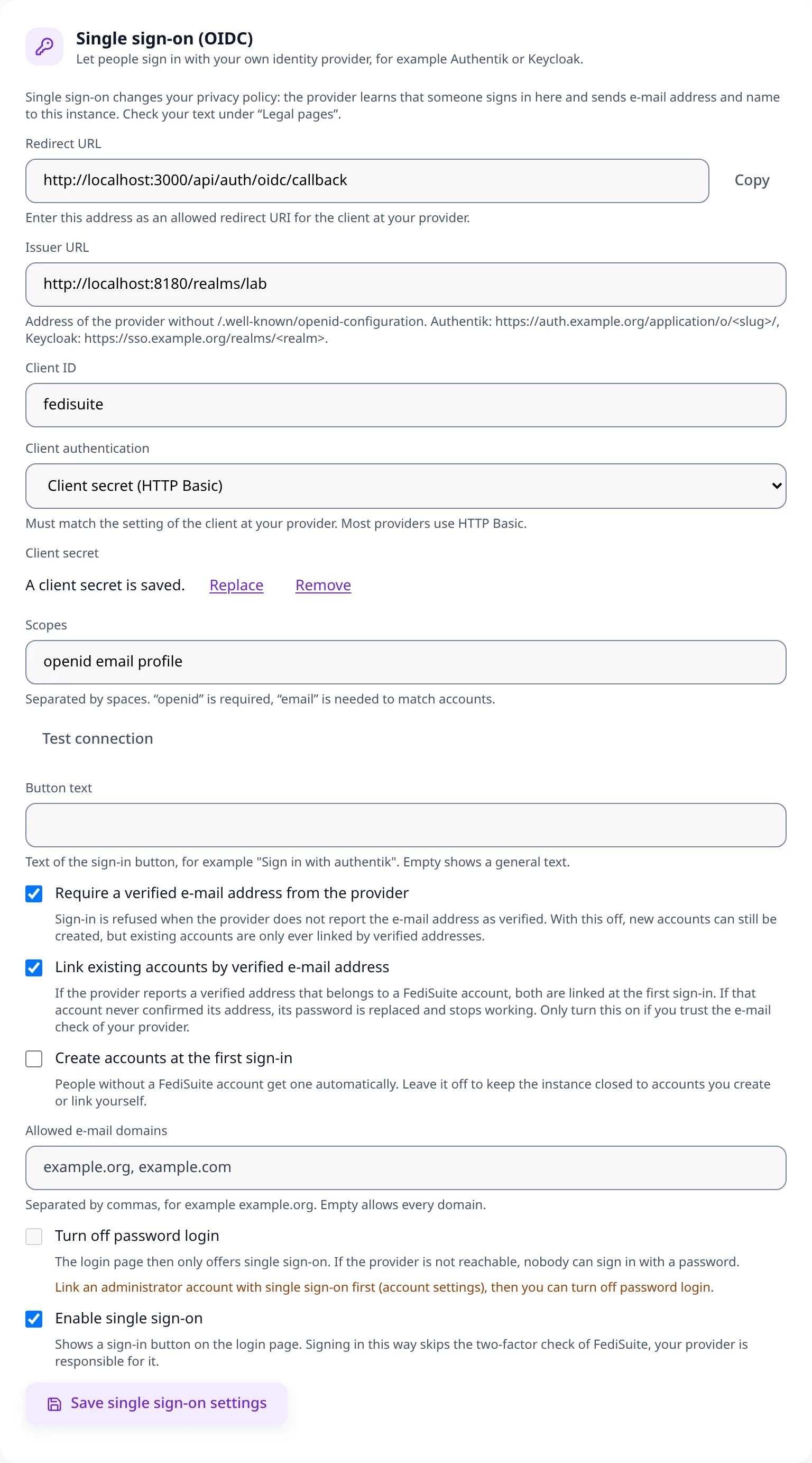
| Field | What you enter and what it does |
|---|---|
| Redirect URL | You enter nothing here. Use Copy to take the address and register exactly that address at the provider. It consists of APP_URL and /api/auth/oidc/callback. |
| Issuer URL | The address of your provider, with or without the suffix /.well-known/openid-configuration. You can paste the configuration address your provider displays. It must match the issuer in the provider's metadata exactly. authentik uses a trailing slash, Keycloak does not. If they differ, FediSuite tries the other spelling once and stores the one the provider announces. |
| Client ID | The client ID from the provider. |
| Client authentication | How FediSuite proves itself to the provider. Client secret (HTTP Basic) is the default and fits most providers. Client secret (request body) is for providers that expect the secret in the form. None (public client, PKCE only) is for a public client without a secret. It must match the client setting at the provider. |
| Client secret | The secret from the provider. It is stored encrypted and never shown again. Afterwards you can swap it with Replace or delete it with Remove. |
| Scopes | Default openid email profile. openid is required. FediSuite needs email to match or create accounts. |
| Test connection | Reads the provider's metadata and shows the answering issuer. If the provider does not announce PKCE (S256), you get a warning. You can run 10 tests per 15 minutes. |
| Button text | Optional, for example "Sign in with authentik". Empty shows a general text. |
| Require a verified e-mail address from the provider | Default: on. FediSuite then refuses the sign-in when the provider does not report the address as verified. Switch it off only if the provider checks addresses itself or only you create the users there. |
| Link existing accounts by verified e-mail address | Default: on. The first sign-in is linked to the FediSuite account with the same address, but only when the provider reports that address as verified. If that account never confirmed its address, its password is replaced and stops working. |
| Create accounts at the first sign-in | Default: off. Off means only people who already have an account (or whose address matches one) get in. On means everybody the provider lets through gets a normal user account. |
| Allowed e-mail domains | Optional, separated by commas, for example example.org. Empty allows every address the provider vouches for. |
| Turn off password login | Default: off. Disables password sign-in, registration and password reset. This only works while single sign-on is on and at least one admin is linked to the provider. |
| Enable single sign-on | Default: off. Shows the button on the sign-in page. |
Click Save single sign-on settings to keep your changes. Click Test connection before saving as soon as you have entered the issuer.
7. Setup with authentik
Tested with authentik 2026.8.5. The menu names may differ slightly in other versions.
In authentik
- Open the admin interface and go to Applications → Applications → Create with Provider. You can also create provider and application separately.
- Give the application a name, for example
FediSuite, and note the slug, for examplefedisuite. The slug becomes part of the issuer. - Choose OAuth2/OpenID Provider as the provider type.
- Set the following:
- Authorization flow: for example
default-provider-authorization-explicit-consent(asks once) ordefault-provider-authorization-implicit-consent(does not ask). - Client type: Confidential. Copy the displayed Client ID and Client Secret.
- Redirect URIs/Origins: add the redirect URL from FediSuite with the matching mode Strict.
- Signing Key: choose a key, for example the self-signed certificate that authentik ships. ID tokens are then signed with RS256. Without a key authentik signs with HS256 and the client secret. FediSuite accepts that for a confidential client. A public client has no secret to sign with, so give it a signing key.
- Scopes:
openid,email,profile. - Grant types (authentik 2026.8 and later): enable Authorization Code. A provider without it answers every sign-in with
invalid_request("Invalid grant_type for provider").
- Authorization flow: for example
- Save. The issuer is:
With the trailing slash. authentik also shows the OpenID Configuration URL on the provider page. You can paste that address into FediSuite as well.https://authentik.example.org/application/o/<application-slug>/
The email_verified trap
Since authentik 2025.10 the standard e-mail scope reports email_verified as false. With the defaults of FediSuite every sign-in then ends with "The provider has not verified your e-mail address yet". The person cannot fix that, because authentik has no verification step for users created by administrators. You have three options:
- Mark the address as verified with a scope mapping. This makes sense when you create the users yourself and trust the addresses. In authentik go to Customization → Property Mappings → Create → Scope Mapping, use the scope name
emailand this expression:
Then edit the provider and replace the default email mapping with your new one. Do this only when every e-mail address in authentik has really been checked, for example because only administrators create users.return { "email": request.user.email, "email_verified": True, } - Switch off "Require a verified e-mail address from the provider" in FediSuite. New accounts can then be created from unconfirmed addresses. Existing FediSuite accounts are still never linked through an unconfirmed address. Those people sign in with their password once and link the provider in their account settings, see What your users see.
- Let authentik verify the addresses, with an enrollment flow that sends a confirmation mail and sets the value.
In FediSuite
Enter issuer, client ID and client secret, leave Client authentication on HTTP Basic, click Test connection and then Save.
Do not change the subject mode later
The authentik setting Subject mode decides what the permanent user ID looks like. Do not change it after people have signed in. The ID changes, linked accounts no longer match, and the sign-in ends with account_conflict until the person removes the old link and links the provider again in the account settings. That is only possible while the password login is on.
8. Setup with Keycloak
Tested with Keycloak 26.6. The issuer is https://keycloak.example.org/realms/<realm>, without /auth on current Keycloak versions.
In Keycloak
- Select your realm and go to Clients → Create client.
- Client type: OpenID Connect. Client ID: for example
fedisuite. Click Next. - Capability config: switch Client authentication On. Under Authentication flow keep Standard flow on; the other flows can stay off. Click Next.
- Login settings: enter the redirect URL of FediSuite under Valid redirect URIs and click Save.
- Open the Credentials tab and copy the Client secret.
- Make sure the users have an e-mail address and that Email verified is set, see the next paragraph.
Verified e-mail addresses in Keycloak
email_verified follows the Email verified switch of each user (Users → user → Email verified). You can mark users as verified by hand, turn on e-mail verification in the realm so people confirm their address themselves, or switch off Require a verified e-mail address from the provider in FediSuite if only you create the users.
In FediSuite
Enter https://keycloak.example.org/realms/<realm> as the issuer, the client ID (fedisuite) and the secret. Leave Client authentication on HTTP Basic, click Test connection and then Save.
9. Other providers
Other providers such as Authelia, Zitadel, Microsoft Entra ID or Google should work when they
- publish an OpenID Connect discovery document (
.well-known/openid-configuration), - support the authorization code flow,
- let you register the redirect URL exactly as it is,
- sign ID tokens with an asymmetric algorithm such as RS256 (HS256 also works for a confidential client),
- report
suband, for account matching,email, ideally withemail_verified.
The FediSuite project has not tested these providers. The steps are always the same: register a confidential client, enter the redirect URL, copy client ID and secret, set the issuer in FediSuite and click Test connection.
10. Which account does a sign-in end up in?
After a successful sign-in at the provider, FediSuite decides in this order:
- The identity is already linked. The pair of issuer and subject is known: the person lands in the linked FediSuite account. The e-mail address no longer matters.
- The e-mail address matches an existing FediSuite account. The settings in the table below decide.
- There is no account yet. Create accounts at the first sign-in decides.
Existing accounts are never linked through an address the provider has not confirmed. This rule cannot be switched off. It protects against someone who creates a user at the provider with a foreign address and takes over the FediSuite account of its real owner.
This is what happens at the first sign-in of a person who is not linked yet:
| The provider reports the address as | Account with this address exists? | Require verified e-mail | Link by verified e-mail | Create accounts | Result |
|---|---|---|---|---|---|
| verified | yes | on or off | on | any | Signed in, the identity is linked. |
| verified | yes | on or off | off | any | account_conflict. The person links the provider in the account settings. |
| verified | no | any | any | on | A new account is created and the person is signed in. |
| verified | no | any | any | off | no_account |
| not verified | yes | on | any | any | email_unverified |
| not verified | yes | off | any | any | account_conflict. The person links the provider in the account settings. |
| not verified | no | on | any | any | email_unverified |
| not verified | no | off | any | on | A new account is created and the person is signed in. |
| not verified | no | off | any | off | no_account |
| no address at all | any | any | any | any | email_missing |
| address outside the allowed domains | any | any | any | any | domain_not_allowed |
More rules:
- Roles never come from the provider. New accounts are always normal users. Admins keep their role in FediSuite, and nobody becomes an admin through the provider.
- Accounts that never confirmed their address. If an account was registered but never confirmed, and a verified provider address matches, the account is taken over: its password is replaced with an unusable one and the account counts as confirmed. That is why the setting is a deliberate decision.
- Letter case does not matter.
Eve@Lab.TESTat the provider findseve@lab.testin FediSuite. - One link per provider. A FediSuite account can be linked to one identity per issuer, and one provider identity belongs to one FediSuite account (otherwise
link_taken). - The link belongs to the issuer. If you enter a different issuer later, nobody is linked any more, see Maintenance and changes.
11. Roll-out in the safe order
Switched on in the wrong order, single sign-on can lock you out. Proceed like this:
- Make a backup (Backup and restore).
- Register the client at the provider and note issuer, client ID and secret.
- Open Admin area → Settings, fill in the card, click Test connection and read the result. It must show the issuer of your provider.
- Save with "Enable single sign-on" on and the password login still on. Open the sign-in page in a private browser window. The single sign-on button must appear.
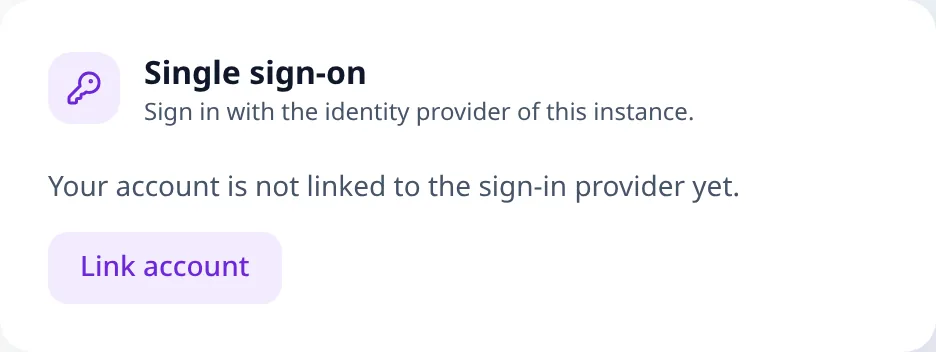
- Link your own admin account. Sign in with your password, open your account settings, find the card Single sign-on and click Link account. Sign in at the provider.
- Test the real sign-in. Sign out and sign in again with the button. You must land in your own account.
- Test with a normal user who has no admin rights, ideally also with a person whose address the provider has not verified. That shows you which message people get.
- Only then, if you want, turn off the password login. The switch only works while at least one admin is linked.
- Tell your users what changes, see What your users see.
The emergency exit
If you cannot get in any more, because the provider is down, the secret has expired, or the password login is off and the provider does not answer, you switch the password login on again from the server:
- In the
.env, set the lineOIDC_PASSWORD_LOGIN_OVERRIDE=true. - Restart the containers:
docker compose up -d. - Sign in with your password. The admin page shows a notice that the emergency exit is active.
- Fix the settings (or switch the password login back on), remove the variable from the
.envand restart again.
The emergency exit only brings the password login back. It does not change the stored settings. Set the variable only while you need it. You find all variables under Environment variables.
12. What your users see
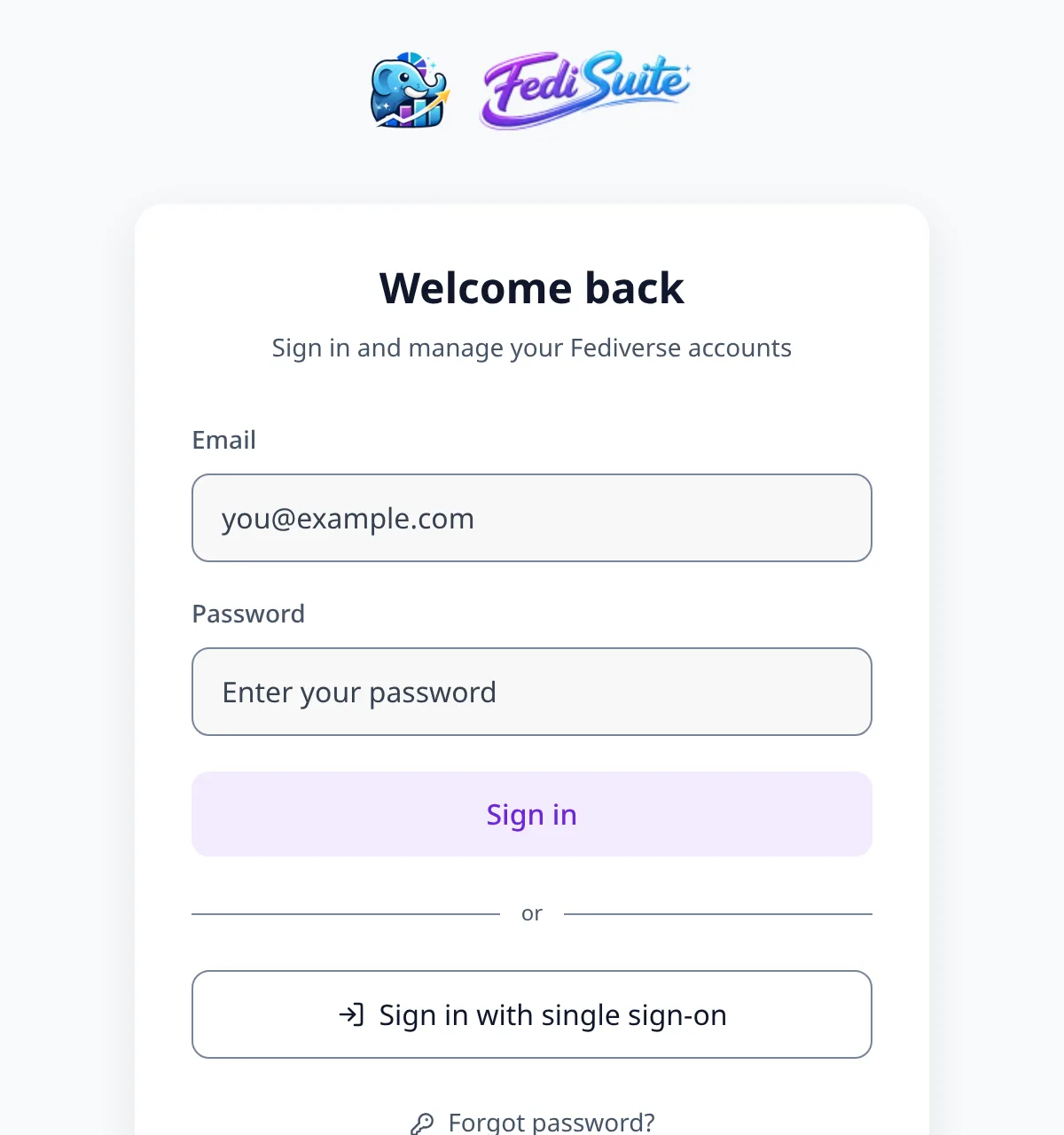
- Sign-in page. With single sign-on on, a button appears below the password form ("Sign in with single sign-on" or your own button text). With the password login off, the page shows only the button.
- Signing in. One click, then the sign-in at the provider (with its second factor if it asks for one), then FediSuite.
- Existing accounts. Depending on your settings, people are linked automatically at the first sign-in (verified address), or they sign in with their password once and link their account in the account settings under Single sign-on → Link account. After that they can use the button.
- Removing the link. Remove link in the same place. It is not possible while the password login is off, because the person could lock themselves out.
- Passwords. The FediSuite password stays valid while the password login is on. With single sign-on the person does not need it.
- Two-factor authentication. The own two-factor check of FediSuite does not apply to sign-ins through the provider. Whatever the provider requires applies.
- Android app. The app signs in with e-mail and password. Keep the password login on if people use the app.
- Messages. If something goes wrong, the sign-in page shows a plain message such as "The provider has not verified your e-mail address yet". The matching codes are listed under Errors and solutions.
Accounts without a password
When single sign-on creates an account, or takes one over because its address was never confirmed, the account gets a random password that nobody knows. The person does not need it, because they sign in at the provider. FediSuite asks for the current password in only a few places: deleting the account, changing the e-mail address or the password, and moving an account (export and import). For these accounts there is a confirmation with single sign-on in place of the password field.
- Where the password field would be, the form shows the button Confirm with single sign-on.
- The person is sent to the provider and has to sign in there again, even if the provider still has a session. The sign-in may be at most two minutes old, and it must be the same person who is linked to the account. FediSuite asks for
prompt=loginand checksauth_timein the ID token. - FediSuite takes the person back to the page they came from. The form shows that it is confirmed, and the person finishes the step within 5 minutes. Each confirmation works for one step only.
- A password can be set. With the same confirmation the person sets a password under Settings → Account → Change password. After that the account is a normal account, and the Android app can sign in with it while the password login is on.
- Unlinking is not possible while the account has no password, because the person would lose access.
- FediSuite two-factor authentication is not offered to accounts without a password. The provider is responsible for the second factor. Whoever sets a password first gets the settings.
- The provider has to play along. It has to ask for the credentials again on
prompt=loginand sendauth_time. Keycloak 26.6 and authentik 2026.8.5 do both. Otherwise the confirmation ends with “The confirmation at the provider did not work”, and the person gets a password through “Forgot password” while the password login is on.
13. How secure is it?
This is what FediSuite does on every sign-in:
- Authorization code flow with PKCE (S256),
stateandnonce. The sign-in code is useless without the code verifier that only FediSuite knows. - ID token validation by a certified library (
openid-client, which builds onjose): signature (checked against the provider's published keys), issuer, audience, expiry and nonce. There is no home-grown token parsing. - Binding to the browser. A cookie ties the sign-in to the browser that started it. A sign-in started in one browser cannot be completed in another (error
state). This stops login CSRF. - One-time values. The
stateis valid for 10 minutes and exactly once. The session ticket is valid for 60 seconds and exactly once. No token appears in the address. - One trusted issuer. FediSuite only talks to the provider you entered. An ID token from any other issuer is rejected.
- No roles from claims. The provider never grants admin rights.
- No linking through unconfirmed addresses. See Which account does a sign-in end up in?
- Confirmation tickets. The ticket of a confirmation with single sign-on is valid for 5 minutes, only for the signed-in session of the same person, only while the account has no password and only once.
- Rate limits. 60 sign-in requests per 15 minutes per address, 10 connection tests per 15 minutes per admin. Whoever hits the limit sees
rate_limited. - Rules for outgoing connections. Requests to the provider go through the same rules as other external requests. Private and local addresses are blocked unless you set
ALLOW_PRIVATE_INSTANCE_URLS=true. Plainhttp://is only possible with that switch. - Handling of the secret. The client secret is stored encrypted in the database, the API never returns it, and it is not logged. Log lines tagged
[OIDC]contain no secrets or tokens. - Audit. Successful and refused sign-ins, linking, unlinking and changes to the settings are written to the audit log.
This stays your responsibility:
- The security of the provider itself: strong passwords or passkeys, multi-factor authentication, updates, and who may create users.
- Who may create accounts at the provider and with which e-mail addresses. With Require a verified e-mail address from the provider off, someone who may create users at the provider can claim a foreign address for a new FediSuite account.
- Keeping
ACCOUNT_ENCRYPTION_KEYsafe.
14. Privacy
- What FediSuite stores. For a linked person: the issuer, the permanent subject ID, the e-mail address and the time of the last sign-in. FediSuite does not store a name or picture from the provider.
- What the provider learns. That someone signs in to your instance, when, from which browser, and the address of your instance.
- What the provider sends. The e-mail address, whether it is verified, the subject ID and, with the scope
profile, name data that FediSuite does not store. - Your privacy policy. The template under Admin area → Legal pages names the provider and describes the data flow as long as single sign-on is on. FediSuite does not change a custom text automatically. Check it and add the provider if you use your own text.
- The provider's own privacy policy applies on its side. If you run it yourself, you decide about it.
15. Errors and solutions
Messages on the sign-in page
| Code | Message to the person | Typical cause and solution |
|---|---|---|
denied | The provider did not allow the sign-in. | The person or the provider cancelled. Try again. |
state | The sign-in expired or was already used. | It took longer than 10 minutes, was used twice, or finished in another browser than it started. Start again. |
failed | The sign-in could not be completed. | The provider answered with an error or an invalid ID token. Read the log (see below). |
disabled | Single sign-on is turned off on this instance. | The switch is off. |
email_missing | The provider did not send an e-mail address. | Add an address to the user at the provider and make sure the scope email is allowed. |
email_unverified | The provider has not verified your e-mail address yet. | The provider reports email_verified=false while FediSuite requires verification. Mark the address as verified at the provider (see the authentik and Keycloak sections) or switch the requirement off in FediSuite. |
domain_not_allowed | The domain of your e-mail address is not allowed on this instance. | Add the domain to Allowed e-mail domains or clear the list. |
no_account | No FediSuite account belongs to this sign-in. | Create or link an account, or switch on Create accounts at the first sign-in. |
account_conflict | The e-mail address belongs to an account that cannot be linked automatically. | Sign in with the password and use Single sign-on → Link account. The code also appears after a changed subject mode. |
link_taken | This provider account is already linked to another FediSuite account. | The person is already linked elsewhere. An admin has to remove that link. |
rate_limited | Too many sign-in attempts. | Wait a few minutes. |
reauth_failed | The confirmation at the provider did not work. | The person signed in as another identity, the sign-in was older than two minutes, or the provider does not support prompt=login and auth_time. Try again; otherwise get a password through “Forgot password”. |
Reading the log
docker compose logs --since 15m app | grep OIDCTypical entries and what they mean:
| In the log or at the provider | Cause |
|---|---|
discovered metadata issuer does not match the expected issuer | The issuer you entered differs from the one the provider announces (trailing slash, http against https, other host name). Use the address from the provider's discovery document. |
Provider page "Redirect URI mismatch" or a redirect_uri error | The redirect URL at the provider is not exactly the one FediSuite shows. Check APP_URL and the registered address (matching mode Strict in authentik). |
authentik invalid_request, "Invalid grant_type for provider" | The Authorization Code grant type is not enabled at the provider. |
invalid_client or token request answered with 401 | Wrong client secret or wrong Client authentication setting. |
| ID token rejected, "unsupported algorithm" | The provider signs with a method FediSuite cannot check against its keys. Set a signing key (RS256) at the provider. |
| ID token expired or "not yet valid" | The clocks of the server and the provider differ. Fix NTP. |
| "The provider address is not allowed by the outbound policy" | The provider is inside a private network. Set ALLOW_PRIVATE_INSTANCE_URLS=true. |
| Connection test: "could not be reached or does not offer a usable OpenID Connect configuration" | Wrong address, the provider cannot be reached from the container, or there is no discovery document. Test from the server, see below. |
Test the provider from the server
docker compose exec -T app node -e "fetch('https://auth.example.org/application/o/fedisuite/.well-known/openid-configuration').then(r => r.json()).then(j => console.log(j.issuer, j.authorization_endpoint))"If the command prints the issuer and the authorization endpoint, the container can reach the provider. The printed issuer is exactly what FediSuite expects.
16. Maintenance and changes
- Rotate the client secret. Create a new secret at the provider, open Admin area → Settings, click Replace at the secret, enter the new one and save.
- Change the issuer. Links belong to the issuer. After a change (even of the spelling alone, for example with and without a trailing slash) the existing links no longer match. People then sign in with their password and link again. Plan this before you change it.
- Move to another provider. Keep the password login on during the move, change issuer and credentials, let people link again, and turn the password login off afterwards if you want.
- Turn single sign-on off. Switch Enable single sign-on off. The links stay in the database. If the password login was off, switch it back on first or use the emergency exit.
- Restore a backup. The settings belong to the database. The secret needs the
ACCOUNT_ENCRYPTION_KEYthe backup was made with. If that key is lost, enter the client secret again. - Updates. Provider updates can change defaults (authentik 2025.10 changed
email_verified). After a provider update, click Test connection and sign in once.
17. Frequently asked questions
- Do I need single sign-on to use FediSuite?
- No. The password login keeps working and stays the default.
- Can people still use their password after I switch it on?
- Yes, until you turn the password login off.
- Can I use several providers at once?
- No. FediSuite uses one provider per instance.
- Can I use Google, Apple or Microsoft accounts?
- Technically every provider that speaks OIDC works. FediSuite does not recommend central consumer logins and does not offer them ready-made. The project stands for digital independence.
- Who becomes admin?
- Nobody through the provider. You set admins in FediSuite.
- What happens when I remove someone at the provider?
- The person can no longer sign in through the provider. An existing session in FediSuite stays valid until it expires, and the account with its password (if the login is on) stays. Remove or deactivate the account in FediSuite as well.
- What if the e-mail address changes at the provider?
- A linked person keeps signing in, because the link uses the permanent subject ID and not the address.
- Does FediSuite ask the provider again later?
- No. The provider is only asked while someone signs in. FediSuite does not create a refresh token.
- Does it work behind Traefik or another reverse proxy?
- Yes. Set
APP_URLto the public address and make sure the container can reach the provider. More about the proxy is on the page Reverse proxy.
18. What has been tested
The feature was tested in an isolated virtual machine against real providers: authentik 2026.8.5 and Keycloak 26.6.
- Cases tested: connection test, sign-in through a linked identity, linking by verified e-mail address, unverified address, account creation on and off, allowed domains, wrong secret,
client_secret_post, public client with PKCE (authentik), e-mail address in mixed case, user without an e-mail address, sign-in finished in another browser, linking and unlinking in the account settings,link_taken, password login off with its refusals, the emergency exit and the admin dialog. - Accounts without a password: confirmation with single sign-on for deleting the account, changing the e-mail address and setting a password in the browser, and authorizing an import at API level, with Keycloak 26.6 and authentik 2026.8.5, including a sign-in that is too old, another identity, an expired and a reused ticket.
- Not tested: authentik before 2026.8, the Android app, other providers and a screen reader on the settings card.
Questions and error reports belong in the support forum.